
If you are searching for how to add M3U playlist in CR Player, this complete step-by-step guide will help you.
CR Player works like IBO Player. First, you need to open the CR Player website in your browser, then enter your MAC address and Device Key, and after that upload your M3U playlist.
Let’s start the full process.
✅ Step 1: Open CR Player App on Your TV
- Install and open CR Player IPTV on your Smart TV or Android TV.
- When the app opens, you will see:
- MAC Address
- Device Key
⚠️ Keep this screen open because you will need these details.
✅ Step 2: Open CR Player Website in Browser
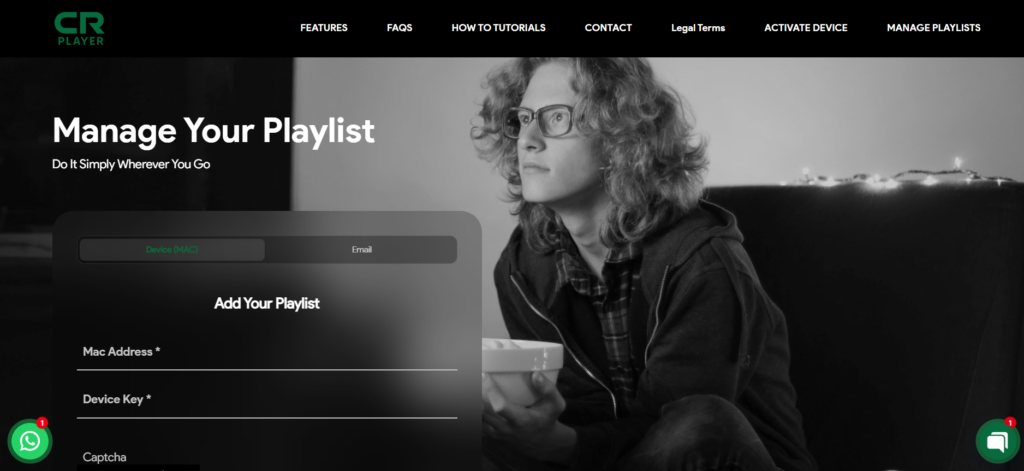
Now go to your mobile or computer browser.
- Open Chrome or any browser.
- Visit the official CR Player activation website (the website name is shown inside the app screen).
Click at Manager Playlist and you will see login fields asking for:
- MAC Address
- Device Key
✅ Step 3: Enter MAC Address & Device Key
- Carefully type your MAC Address (exactly as shown in the app).
- Enter your Device Key.
- Click Login or Next.
After successful login, your device dashboard will open.
✅ Step 4: Add M3U Playlist
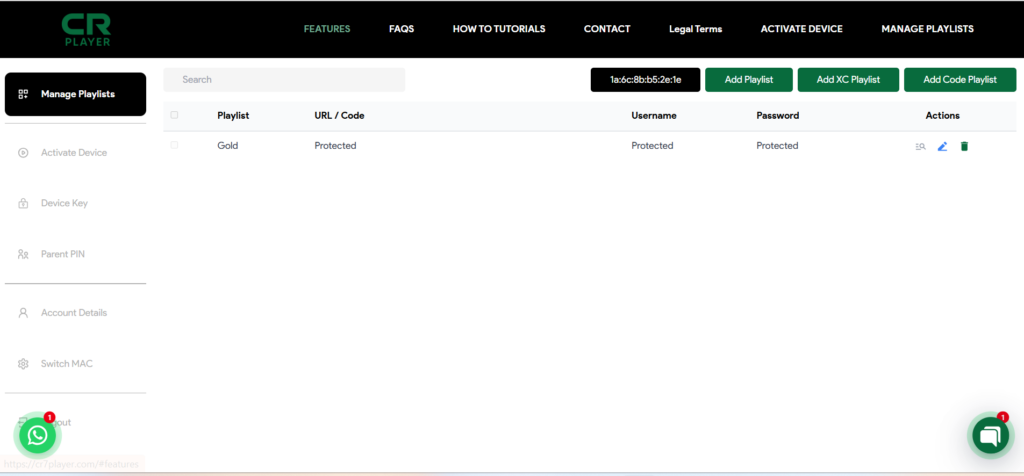
Inside the dashboard:
- Click on Add Playlist
- Select M3U URL
- Enter:
- Playlist Name (Any name you like)
- M3U URL (Provided by your IPTV provider)
Example format:
http://provider.com/get.php?username=XXXX&password=XXXX&type=m3u
- Click Save / Add Playlist
Your playlist will be uploaded to the server.
✅ Step 5: Restart CR Player App
Now go back to your TV.
- Close CR Player completely.
- Reopen the app.
- Your channels will start loading automatically.
You will now see:
- Live TV
- Movies
- Series
(depending on your IPTV subscription)
🔧 How to Add Xtream Codes (XC Login)
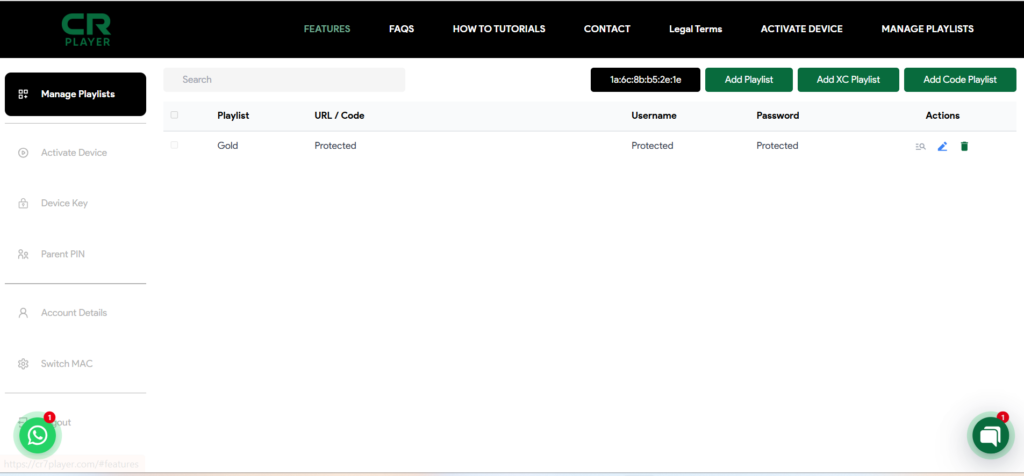
If your provider gives Xtream Codes details instead of M3U:
On the website dashboard:
- Select Xtream Codes
- Enter:
- Server URL
- Username
- Password
- Click Save
Restart the app again and your content will load.
❗ Common Problems & Solutions
Playlist Not Showing?
✔ Restart the app
✔ Check internet connection
✔ Re-enter M3U URL
Login Failed?
✔ Make sure MAC & Key are correct
✔ Don’t add extra spaces
🎯 Final Words
Now you fully understand how to add M3U playlist in CR Player using MAC and Device Key.
The complete process is:
- Open CR Player
- Note MAC & Key
- Open website in browser
- Login with MAC & Key
- Upload M3U playlist
- Restart app
Your IPTV will work smoothly after this.