
Is your Smart TV or streaming device suddenly slow, freezing, closing apps, or buffering more than usual? Learning how to clear cache on Smart TV, Firestick, and Google TV can fix many temporary app problems without deleting your account or subscription details.
What Is App Cache on a Smart TV?
Streaming apps save temporary files—such as thumbnails, menus, and recently used information—to load faster. Over time, damaged or outdated cache files can cause slow navigation, app crashes, blank screens, playback errors, or buffering. Clearing the cache removes these temporary files so the app can rebuild fresh ones.
| Option | What it removes | Will you be signed out? |
|---|---|---|
| Clear cache | Temporary app files | Usually no |
| Clear data/storage | Settings, login and app data | Usually yes |
| Uninstall | App and its local files | Yes |
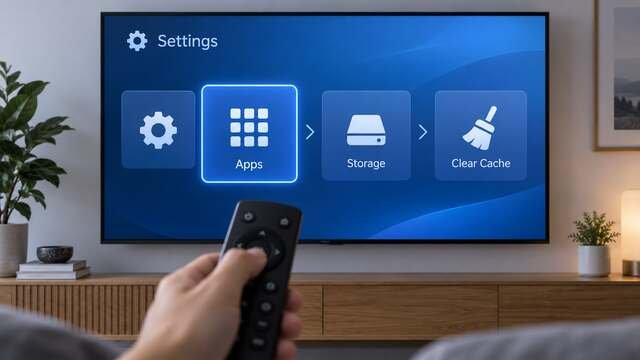
When Should You Clear the Cache?
- An app opens slowly, freezes, or closes unexpectedly.
- Live TV or on-demand content buffers even though your internet is stable.
- Channel logos, programme guides, or thumbnails do not refresh.
- Your device displays a low-storage warning.
- An app behaves incorrectly after an update.
Cache clearing is a troubleshooting step, not a daily maintenance task. If every app buffers, first test the connection using our internet speed guide for HD and 4K streaming.
How to Clear Cache on Amazon Firestick or Fire TV
- From the Fire TV home screen, open Settings.
- Select Applications.
- Choose Manage Installed Applications.
- Select the app that is slow or not working correctly.
- Choose Clear cache.
- Return to the home screen and reopen the app.
If the app still fails, select Force stop, clear the cache again, and restart the Firestick. Use Clear data only as a final step because it can remove saved login and configuration information.
How to Clear Cache on Google TV
- Select your profile picture or the Settings icon.
- Open Apps and choose See all apps.
- Select the affected streaming app.
- Open Clear cache and confirm if prompted.
- Restart the app and test playback.
Menu wording can vary slightly after a system update. If you are setting up a new device, follow our Google TV setup guide for USA and Canada.
How to Clear Cache on Android TV
Sony, TCL, Hisense, Philips and other Android TV models normally use a similar route:
- Go to Settings > Apps.
- Select See all apps or Downloaded apps.
- Choose the app you want to repair.
- Select Clear cache.
- Restart the TV if performance does not improve immediately.
Some televisions show Storage & cache before the Clear cache button. The exact names depend on the manufacturer and Android TV version.
How to Clear Cache on Samsung Smart TV
On many recent Samsung models, open Settings > Support > Device Care > Manage Storage. Select the app, choose View Details, and then select Clear Cache.
If your Samsung TV does not show that option, perform a cold boot: turn the TV off, unplug it for about 60 seconds, reconnect it, and start it again. Older models may require deleting and reinstalling the affected app.
How to Clear Cache on LG Smart TV
Many LG webOS televisions do not offer one universal Clear cache button for every installed app. Try these safe steps:
- Close the affected app completely.
- Turn off the TV and unplug it for 60 seconds.
- Reconnect the TV and test the app.
- If the problem continues, check for an app and webOS update.
- Delete and reinstall the app only after confirming you have the required login details.
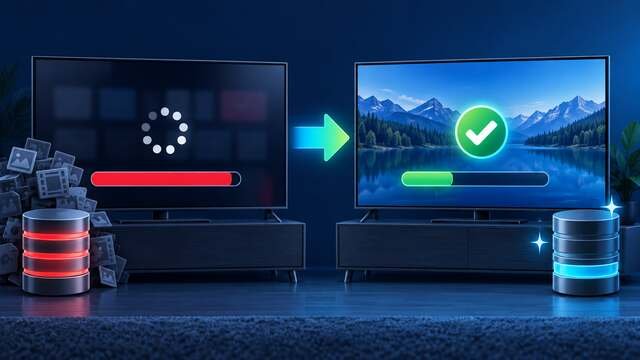
What to Do If Clear Cache Does Not Fix the Problem
- Restart the device: a full restart clears temporary memory.
- Check free storage: remove unused apps if storage is nearly full.
- Update the app and TV software: old versions can cause crashes.
- Restart your router: network congestion can look like an app problem.
- Use Ethernet or strong 5 GHz Wi-Fi: a stable connection helps high-quality streams.
- Reinstall the app: do this last, because login details may be removed.
For connection-related issues, see our detailed guide on how to stop IPTV buffering on Smart TV. If your hardware remains slow, compare options in our best streaming devices for 2026 guide.
How Often Should You Clear Cache?
There is no need to clear every app every day. Clear the cache when an app becomes slow, stops refreshing, crashes, or uses unusually high storage. Repeatedly clearing a healthy app can make its first launch slower because images and menus must be downloaded again.
Frequently Asked Questions
Does clearing cache delete my account or playlist?
Normally, no. Clear cache removes temporary files. Clear data or Clear storage is the option more likely to delete sign-in details and app settings.
Will clearing cache stop buffering?
It can help when corrupted temporary files are causing the app to lag. It will not fix slow internet, weak Wi-Fi, an overloaded network, or a remote service problem.
Can I clear all app caches at once?
Some TV brands provide Device Care or storage-cleaning tools, but Firestick and Google TV usually make it safer to clear cache one app at a time.
Why is the app slow immediately after clearing cache?
The first launch can be slower while the app downloads fresh thumbnails and guide information. Performance should improve after the new cache is built.
Is Clear data the same as Clear cache?
No. Clear data resets the app more completely and may remove your login and preferences. Always try Clear cache first.
Need Help With Your Streaming Setup?
Compare compatible entertainment options or request a device-compatibility trial before choosing a plan.
Note: Menu names can differ by TV brand, model, region, and software version. Clearing cache does not guarantee a fix for network or provider-side problems.


Pingback: How to Update Apps on Firestick & Google TV (2026)