
Buffering can turn a relaxing evening into a frustrating experience. Whether you watch on a Smart TV, Firestick, Android TV box, Google TV, or another streaming device, the cause is usually one of five things: weak Wi-Fi, network congestion, an overloaded app, outdated device software, or an unstable content source.
This practical 2026 guide explains how to stop IPTV buffering, improve Smart TV streaming quality, and create a more stable home entertainment setup—without immediately replacing your television or buying expensive equipment.
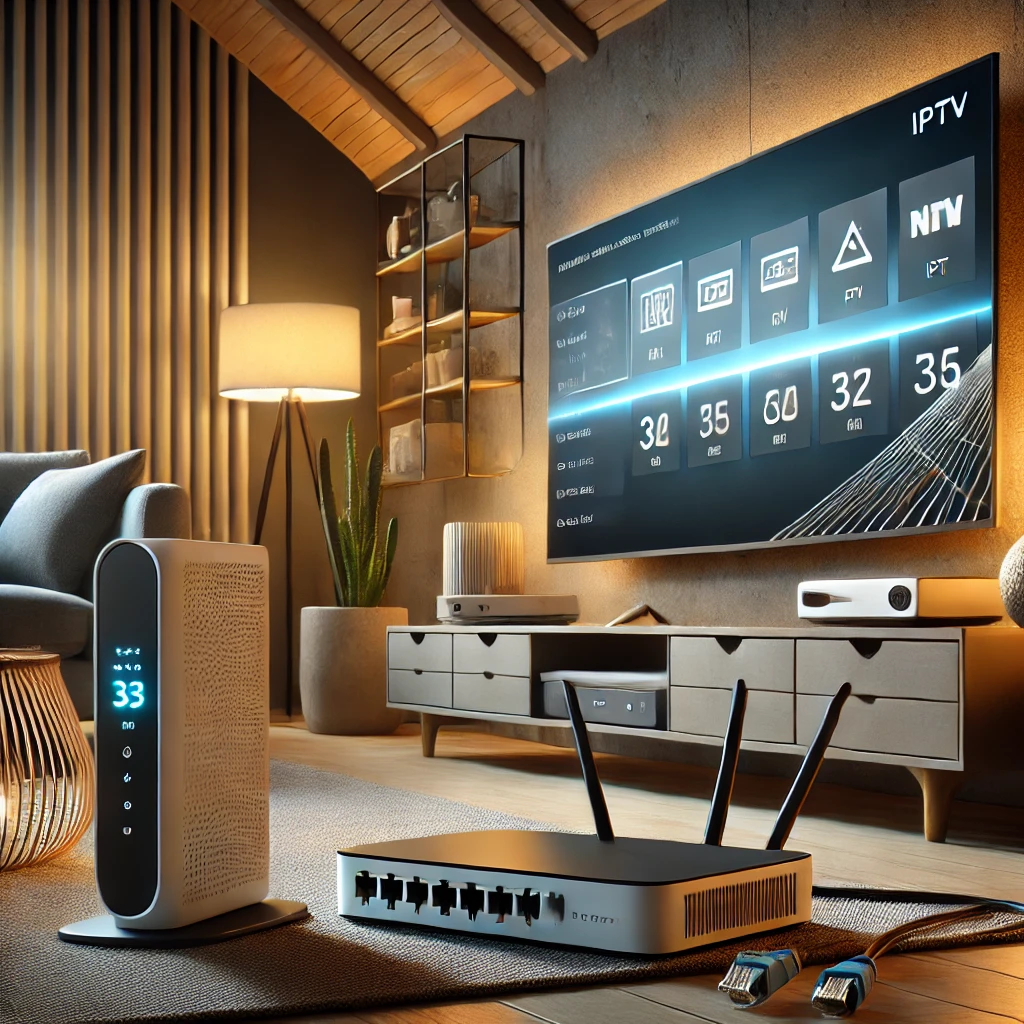
1. Restart the TV, streaming device, and router
Begin with a full power cycle. Close the streaming app, unplug the Smart TV or streaming device from power, and restart the modem and router. Wait until the internet connection is fully restored before turning the TV back on. This clears temporary memory issues and refreshes the network connection. Google, Amazon, and Roku all include restarts among their first troubleshooting steps for freezing, stuttering, and playback problems.
2. Test your real internet speed near the TV
Run a speed test on the same device or as close to the television as possible. A fast package does not guarantee a strong signal in every room. Walls, distance, interference, and too many connected devices can reduce the speed reaching your TV. If the result changes significantly during busy evening hours, network congestion may be contributing to the problem.
3. Use Ethernet for the most stable connection
For a reliable IPTV setup, connect the TV or streaming box directly to the router with an Ethernet cable whenever possible. A wired connection avoids many common Wi-Fi issues, including interference and sudden signal drops. If your Firestick or compact streaming device has no Ethernet port, a compatible Ethernet adapter may help.
4. Improve Wi-Fi router placement
Place the router in an open, central, and elevated position. Avoid hiding it inside a cabinet or placing it behind the television, near thick walls, or next to appliances that create wireless interference. If the TV is far from the router, consider a mesh Wi-Fi system or a wired access point instead of relying on a weak signal.
5. Choose the right Wi-Fi band
Use 5 GHz when the TV is reasonably close to the router because it usually provides higher speed with less congestion. Use 2.4 GHz when the TV is farther away or separated by several walls because it generally offers better range. Test both bands and keep the one that provides the most consistent performance—not merely the highest one-time speed result.
6. Clear the streaming app cache
A large or corrupted cache can make an app slow, unresponsive, or unstable. On Fire TV, open Settings > Applications > Manage Installed Applications, select the app, and clear its cache. On Android or Google TV, the path is usually under Settings > Apps. Avoid clearing app data unless necessary because it may remove saved login details and preferences.
7. Close unused apps and free storage
Streaming devices with limited memory may struggle when many apps remain open or storage is almost full. Remove unused apps, delete unnecessary downloads, and restart the device. Keeping free storage available can reduce lag and app crashes, especially on older Smart TVs and entry-level TV boxes.
8. Update the app and device software
Install available updates for your television, streaming device, and player app. Updates often include performance improvements, compatibility fixes, and security patches. If only one app is buffering while other apps work normally, update or reinstall that specific app before changing your entire network.
9. Lower video quality during busy hours
4K video requires a faster and more consistent connection than HD. If buffering appears only on high-resolution content, temporarily switch to 1080p or an automatic quality setting. Smooth HD playback usually provides a better experience than unstable 4K playback that pauses every few minutes.
10. Check whether the issue is the network, app, or source
Test another app, another channel or video, and—if available—another internet connection. If every app buffers, focus on the router, Wi-Fi, ISP, or device. If only one app fails, clear its cache or reinstall it. If only one stream is affected, the issue may be limited to that source rather than your home internet.
Quick checklist for a stable IPTV subscription
- Restart the TV, player, modem, and router.
- Use Ethernet whenever possible.
- Keep the router open, central, and away from interference.
- Clear app cache and close background apps.
- Keep at least some storage free on the device.
- Update the app and operating system.
- Use HD instead of 4K on a limited connection.
- Choose a reliable, well-supported entertainment service.
Frequently asked questions
Why does my IPTV keep buffering even with fast internet?
Your package speed may be high while the actual Wi-Fi signal reaching the TV is weak. Interference, distance, router placement, network congestion, low device storage, or a problem with one app or stream can also cause buffering.
Is Ethernet better than Wi-Fi for IPTV?
Yes, in most home setups Ethernet provides a more consistent connection and avoids wireless interference. Strong modern Wi-Fi can still work well, but a cable is usually the first choice for maximum stability.
Should I use 2.4 GHz or 5 GHz for Smart TV streaming?
Use 5 GHz for higher speed at shorter range and 2.4 GHz for better reach through walls. The best option is the band that remains stable where your TV is installed.
Final thoughts
The best Smart TV buffering fix is a process of elimination. Start with a restart, test the connection near the TV, improve router placement, and use Ethernet if available. Then clear the app cache, update the device, and compare other apps or streams. These simple checks solve many common playback problems and help you enjoy smoother home entertainment.
Helpful official resources: Google TV video quality troubleshooting, Amazon Fire TV app troubleshooting, and Roku Wi-Fi improvement guide.
Related guides and service options
For connection planning, read our internet speed guide for HD and 4K streaming. You can also compare our available service options for different devices, languages, picture-quality needs and internet speeds.
For viewers in Canada: See our dedicated IPTV Canada service guide for compatible devices, multilingual options, connection recommendations and free-trial information.


Pingback: Internet Speed for IPTV in 2026: HD & 4K Guide
Pingback: IPTV Google TV Setup Guide 2026 | USA & Canada
Pingback: Best Streaming Device for IPTV 2026 | TZ IPTV
Pingback: How to Change or Add a Playlist in IBO Player (2026) | TZ IPTV
Pingback: 2026 Emmy Awards: Date, Time, Where to Watch & Viewing Guide - TZ IPTV
Pingback: What to Watch This Week: September 14–20, 2026